
Causes of no votes being received / all keypad LEDs just circling rather than showing a number:
- No active voting process - either a test screen or vote must be active for the keypads to function. At all other times the keypads will time out (show a t on the LED).
- Receiver not being recognised by the computer - not fully plugged in, a faulty USB port or cable, or a USB driver issue (usually resolved by plugging the receiver into a different USB port and/or rebooting the computer.
- Incorrect configuration of the receiver - usually caused by removing the receiver prior to closing PowerPoint. The receiver channel must match the keypads. For most WJA trainers the channel is set to 75 on the keypads, so should be 75 for the receiver. This can be reset following the instructions here.
These instructions cover where to find the channel of receiver and how to change that.
- Plug in the receiver and open PowerPoint.
- Go to Add-Ins > CLiKAPAD > Set-up > Keypads. The Keypad Set-Up window will open.
- On your keyboard press: SHIFT+CTRL+C (all together!) to reveal some extra settings.
- Click the Settings button. The CLiKAPAD Advanced Settings window will open.
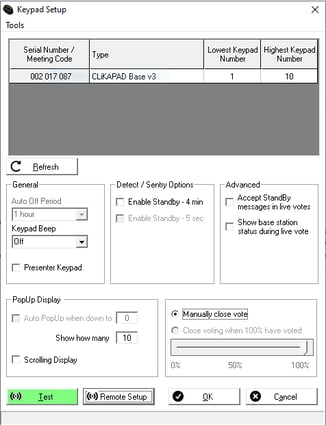
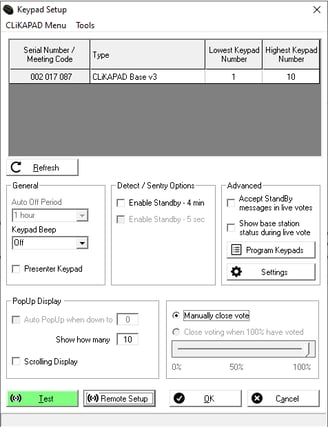
5. Click on the “Circuit Config tab”.
6. Listed in the top left are all available CLiKAPAD base stations.
7. Click on the base station you wish to use and check the Current Config box to determine your current channel.
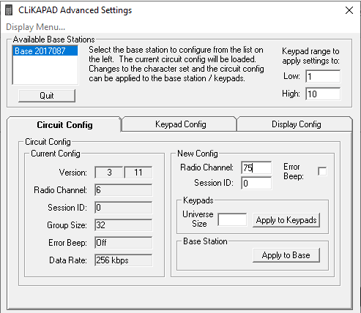
8. If you want to change the channel of the receiver to match your keypads, type in the new channel number and click on Apply to Base. If you don't know the channel of your keypads try the default, which is 75.
9. Close the window and test your keypads again.