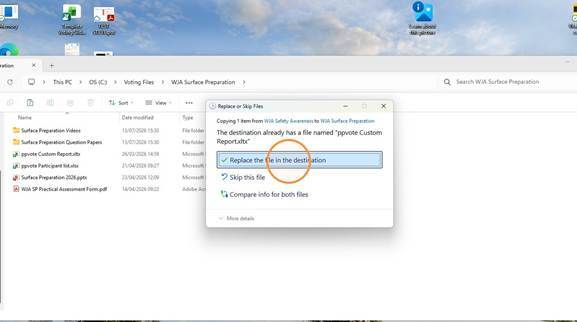
You will need a copy of the ppvote Custom Report file, as that holds the information about what information to include in the export, not just the branding to use. If you don't have a copy, you can obtain one from another trainer or by emailing wja@clikapad.com.
- Browse to the folder that holds the ppvote Custom Report that you wish to update
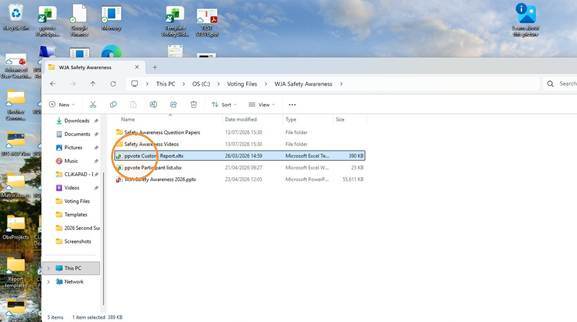
- Open the Excel report workbook
- Delete the logo that you wish to replace
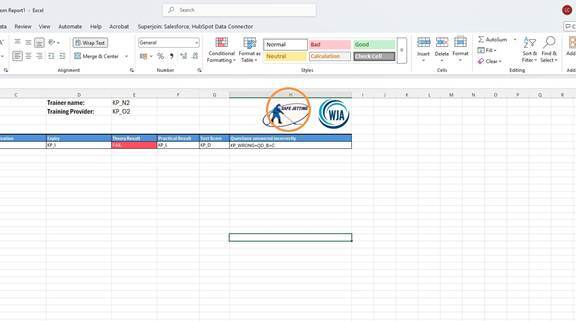
- Click "Insert"
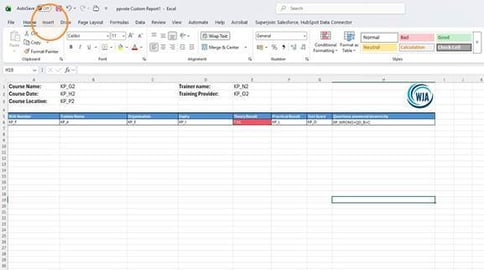
- Click "Pictures"
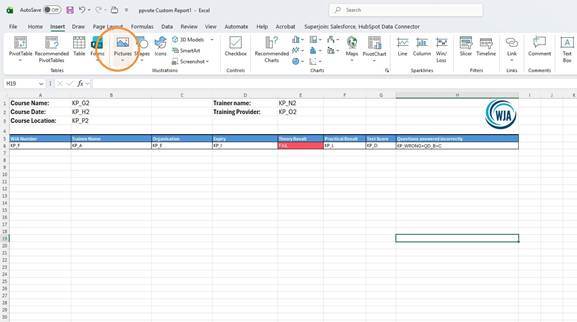
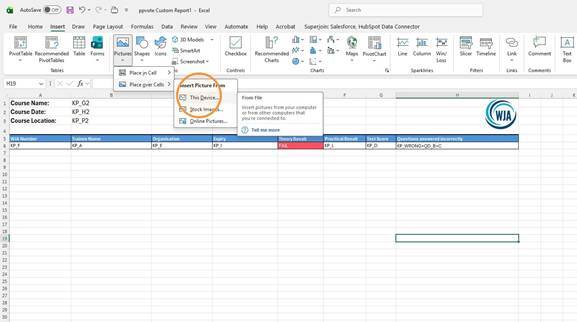
- Choose This Device from the Pictures menu
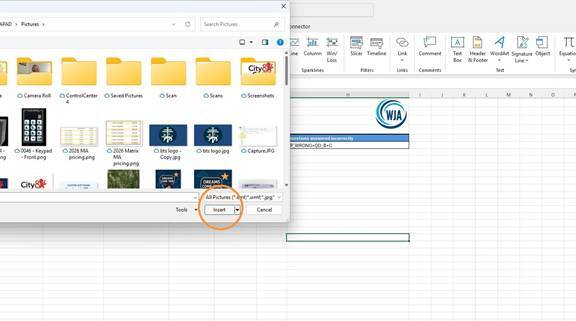
- Browse to the folder with the logo image that you wish to insert, click on the logo and then click the Insert button
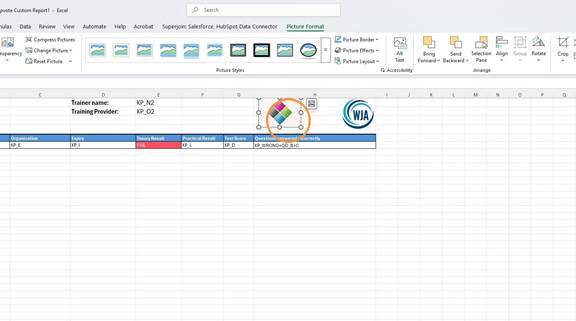
- Resize and position the inserted logo in the report header
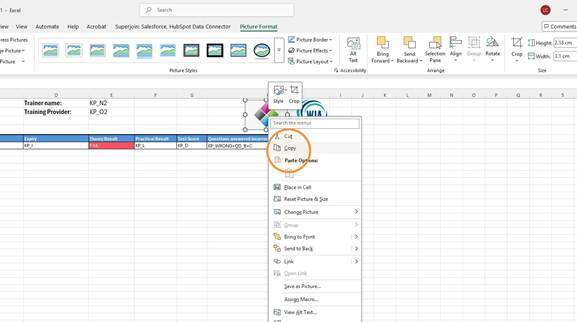
- Right-click the inserted logo picture and choose Copy
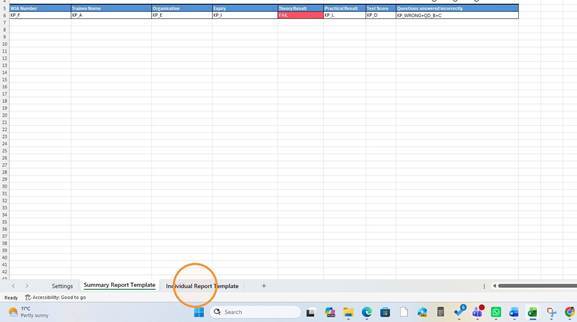
- Click on the "Individual Report Template" tab
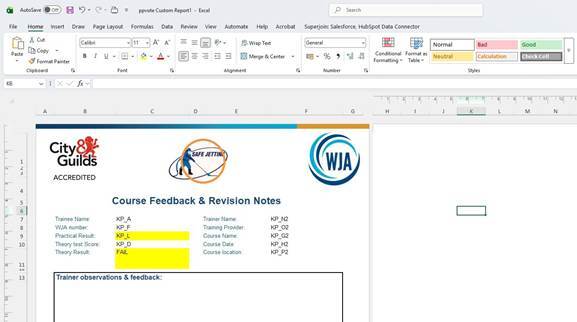
- Delete the logo you wish to replace
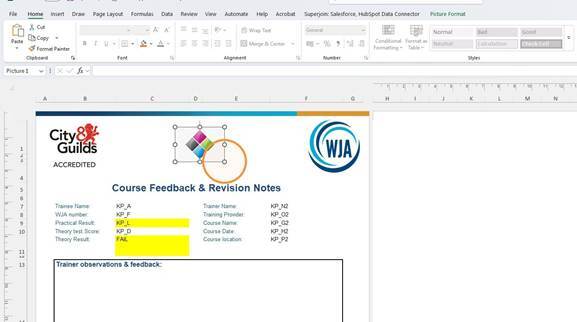
- Paste the logo you copied and resize and position the pasted logo in the report header
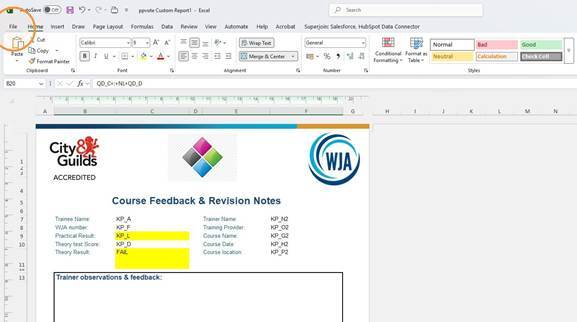
- Click on File
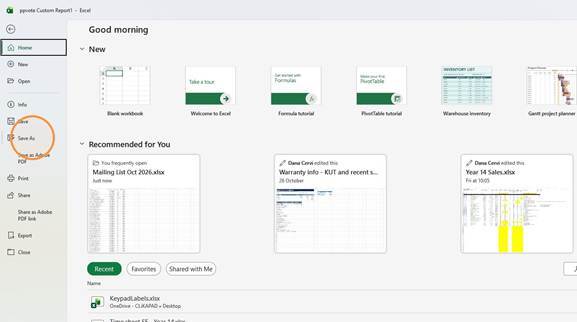
- Click "Save As"
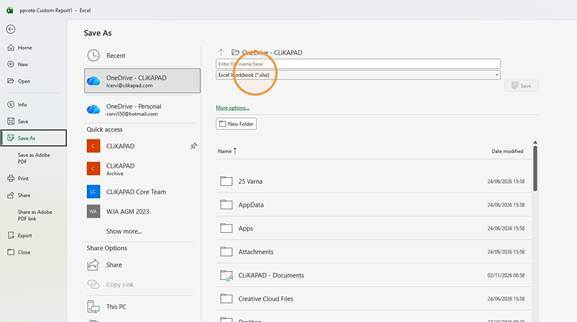
- Open the Save as type menu - CRITICAL STEP. If you save as a workbook not a template, it will not work.
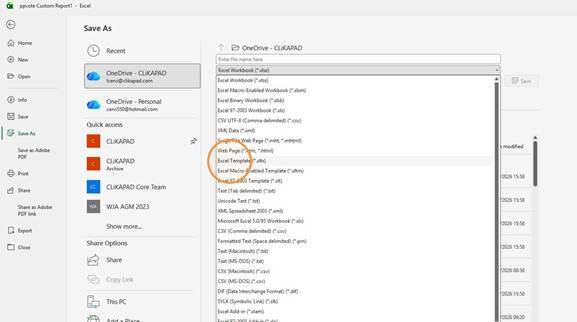
- Choose Excel Template (*.xltx)
- Click More options
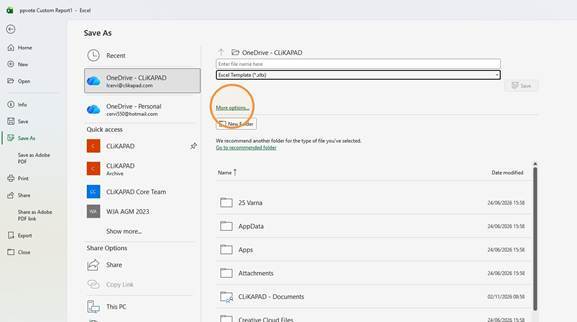
- Browse to one of your course folders
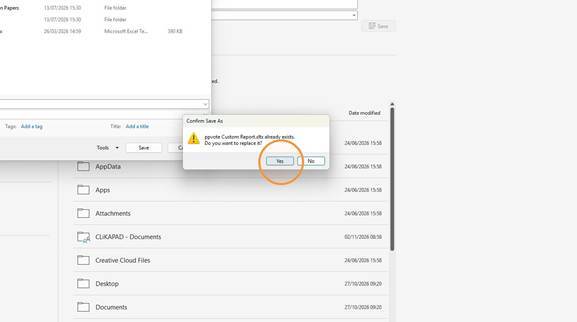
- Save the Excel template
- Confirm replacing the existing workbook
- Right-click the saved Excel template and choose Copy
- Paste into the next course folder
- Replace the existing file in the destination. Then repeat this for all your other course folders