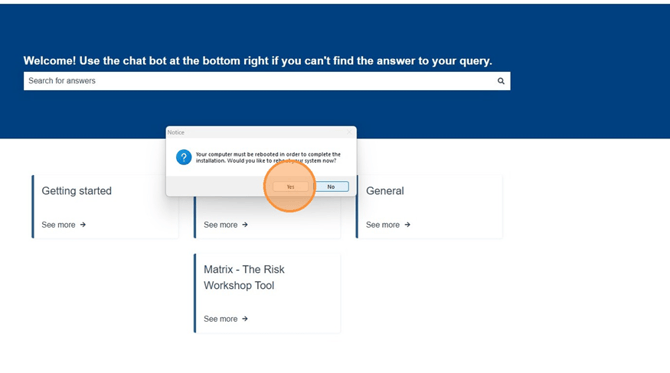
Please note, you will need Admin Rights to install, so you may need your IT support team to do this for you. Before starting, save and close all other work as you’ll need to reboot after installation. Ensure that PowerPoint is closed.
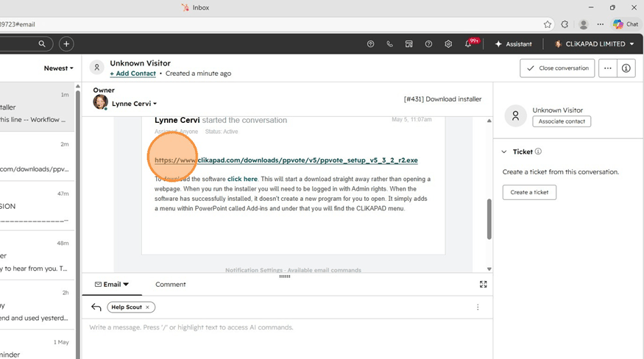
Click the link to download the installer "https://www.clikapad.com/downloads/ppvote/v5/ppvote_setup_v5_3_2_r2.exe"
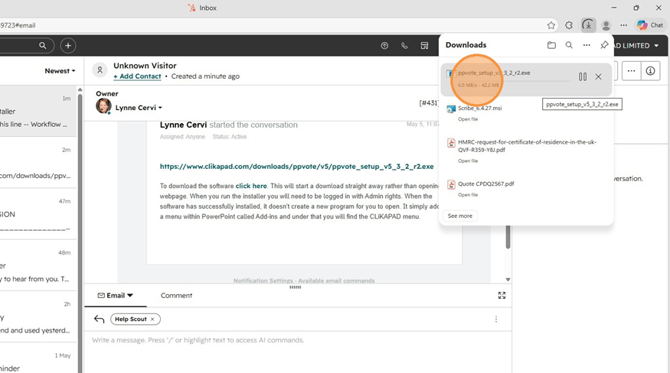
Click "Downloads" to check the file is downloading and wait for it to fully download.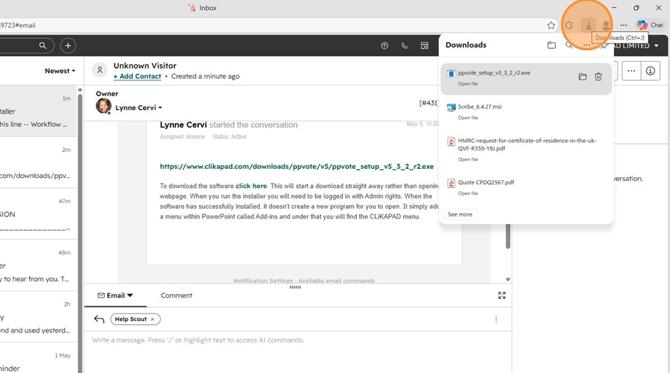
Click the downloaded file "ppvote_setup_v5_3_2_r2.exe"
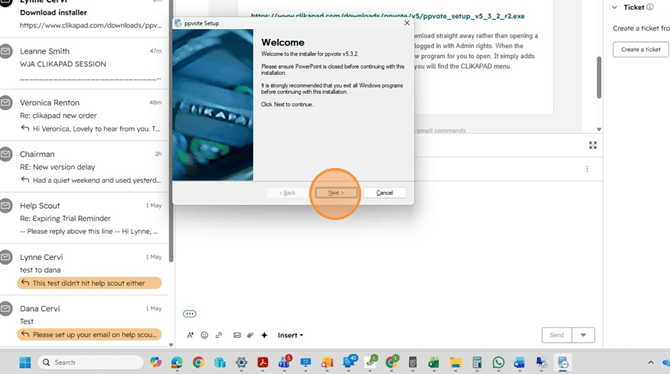
Click "I agree to the terms of this license agreement", then click Next
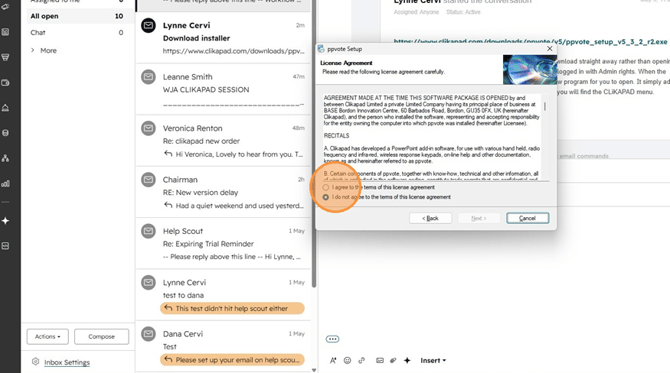
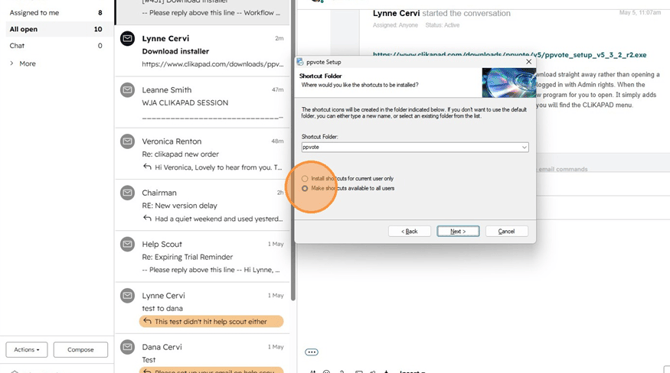
Click "Finish"
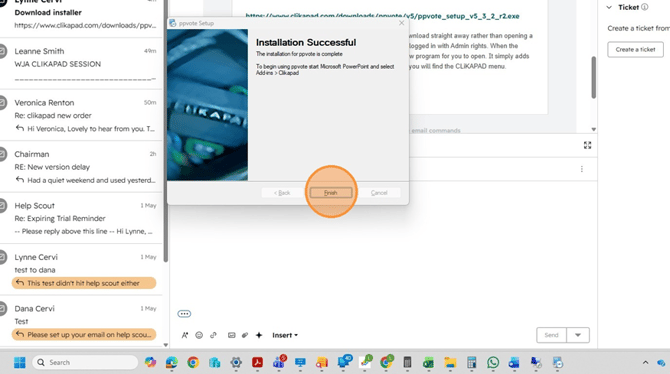
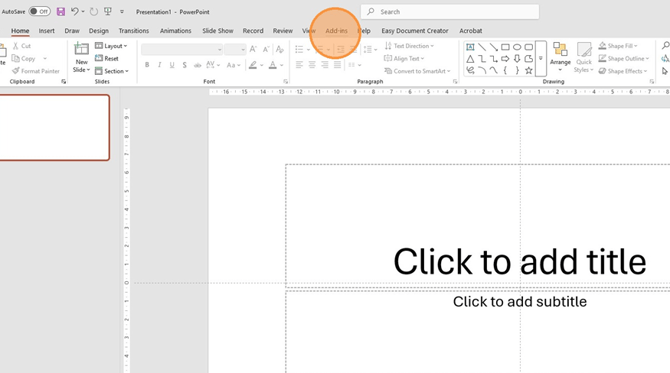
To check your installation and licence status, click "Add-ins"

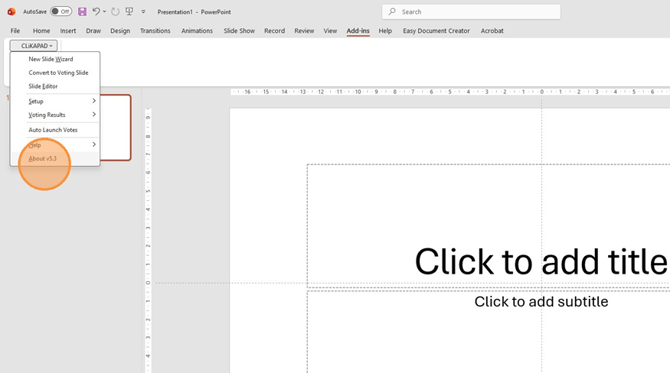
Click About v5.3 – Note, if it says About v5.2 the new version has NOT successfully installed.
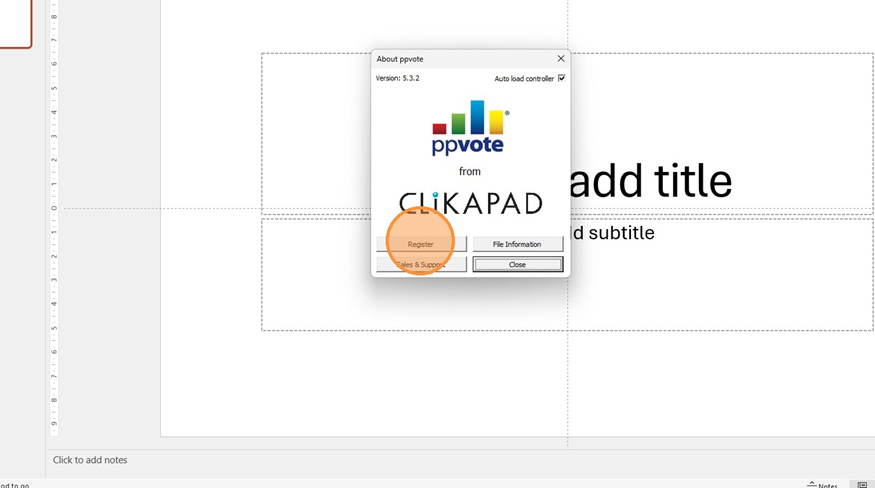
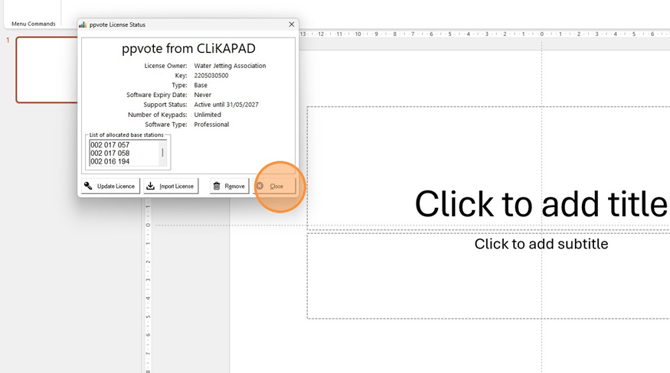
Check the licence status looks right. This is how you would expect it to look if the licence is present. If yours states the owner is WJA and the support is in date, you can click Close.
If your licence status looks like this you need to follow the below instructions to retrieve the licence from the Clikapad server. If your licence states that the owner is WJA but the support date is wrong, the instructions below are relevant but the button on this screen will say Update Licence rather than Retrieve Licence. In both cases, that is the correct button to click.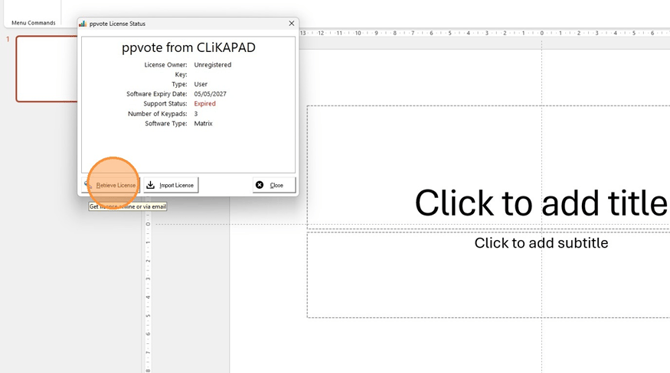
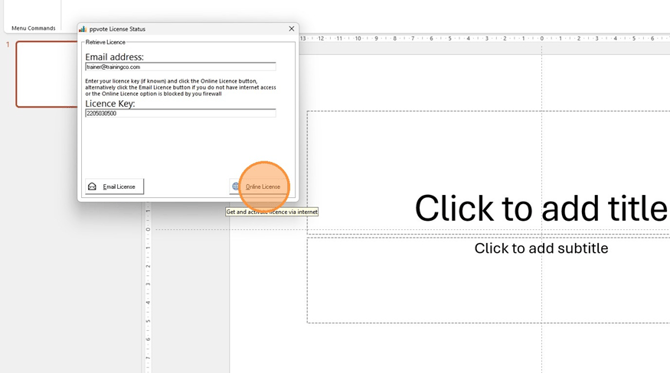
Add your email address and the WJA licence key (2205030500) then click "Online Licence"
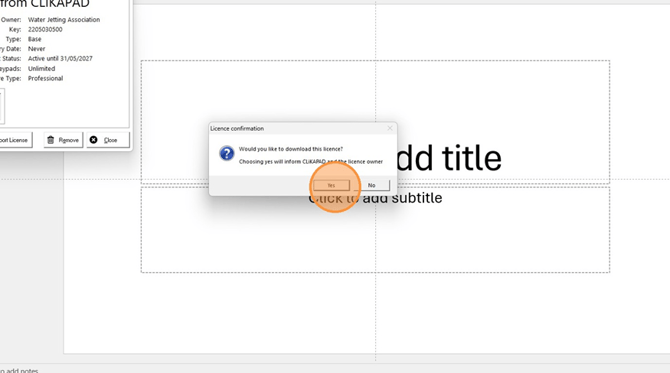
Click "Yes"
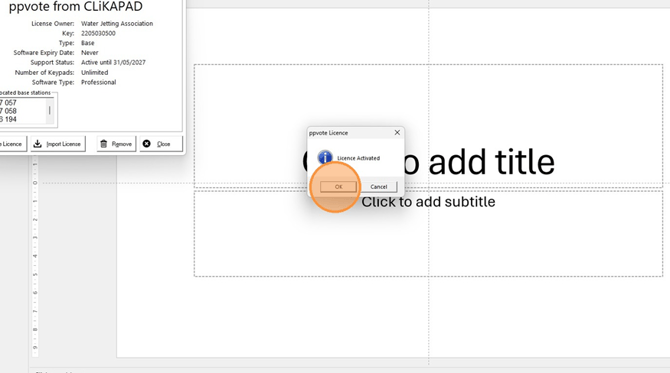
Click "OK"