Prepare the Zip
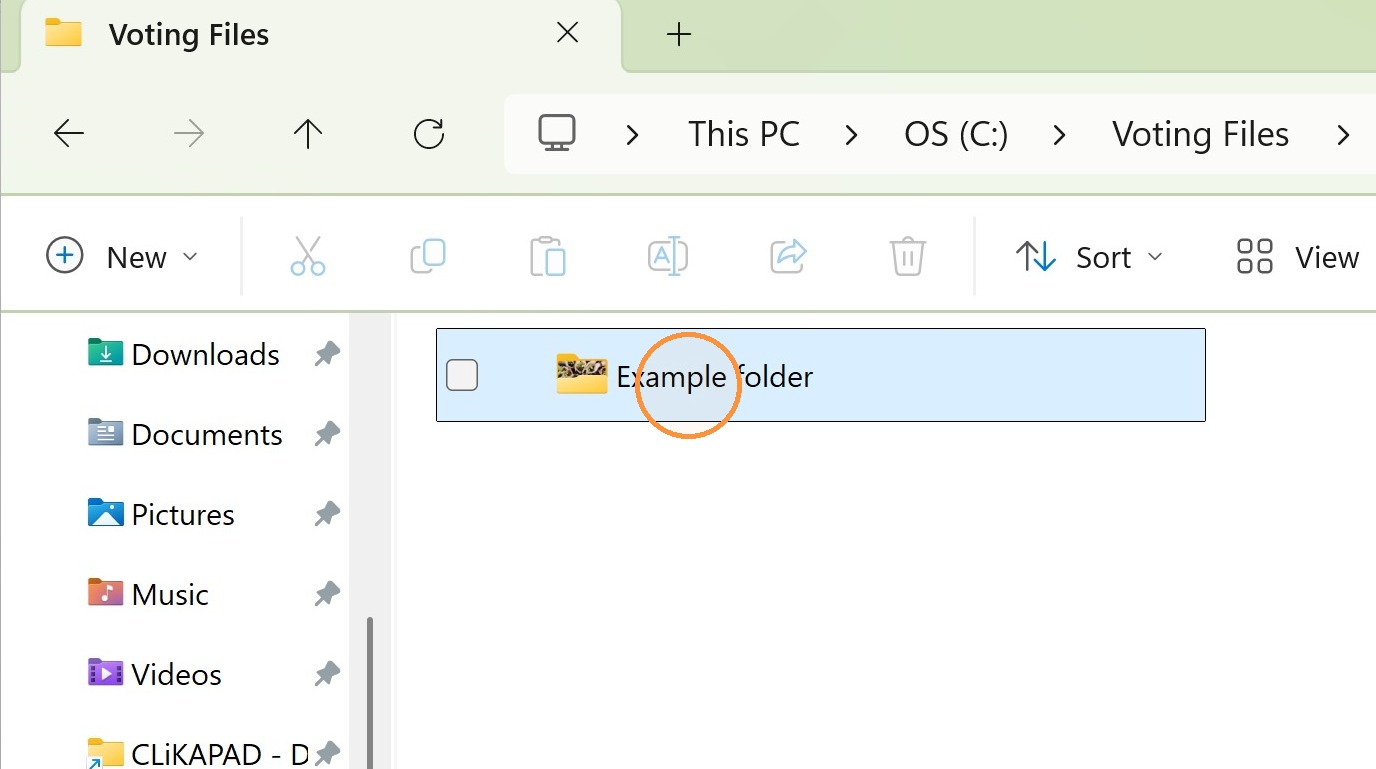
1. Right-click the folder that you need to share with us.
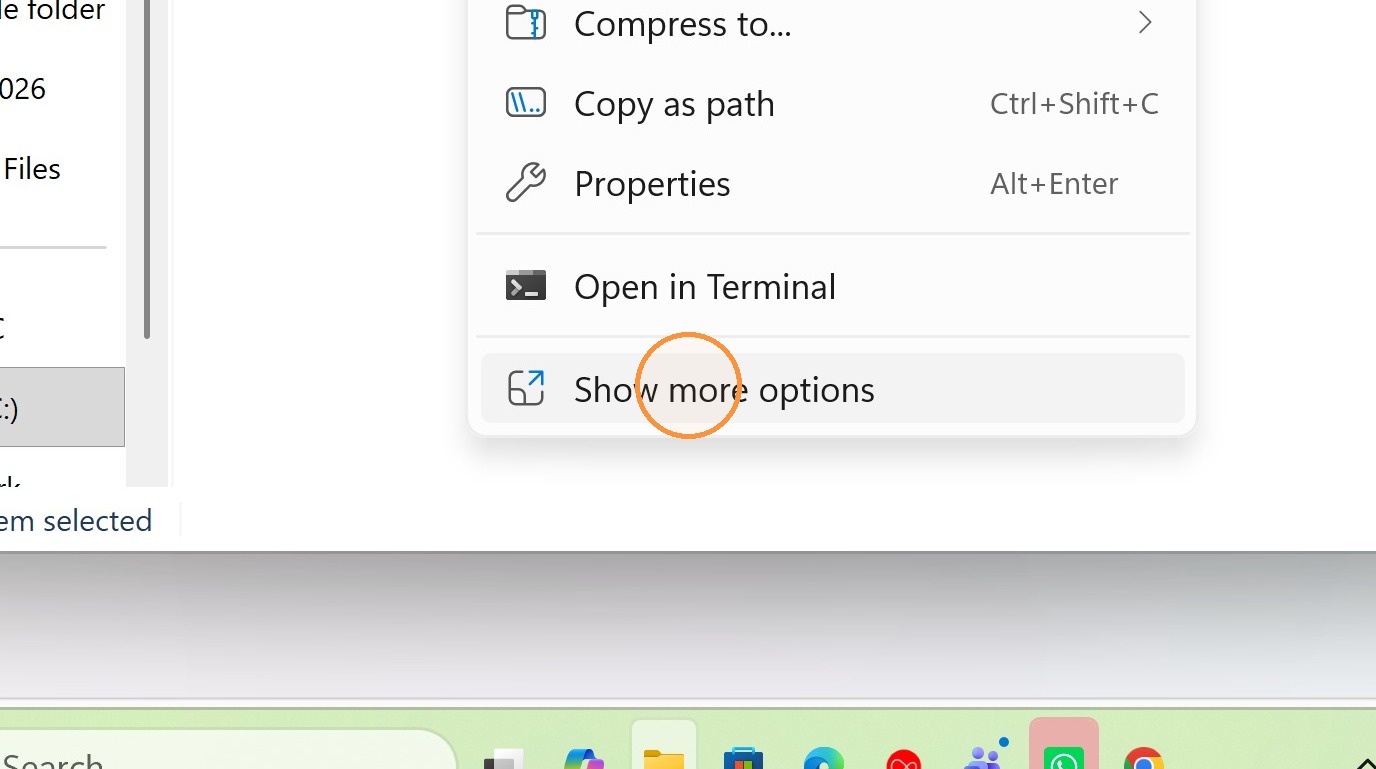
2. Click Show more options.
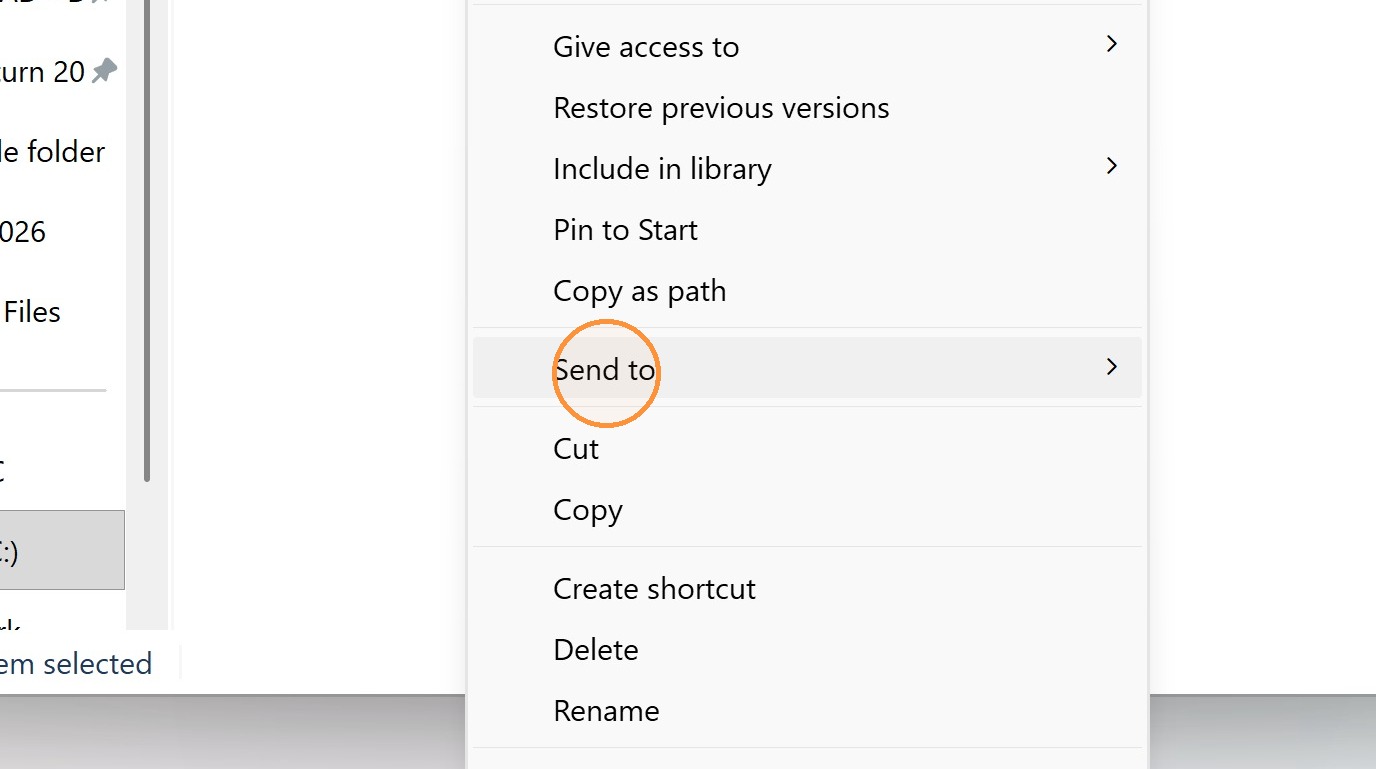
3. Click "Send to"
4. Click "Compressed (zipped) folder"
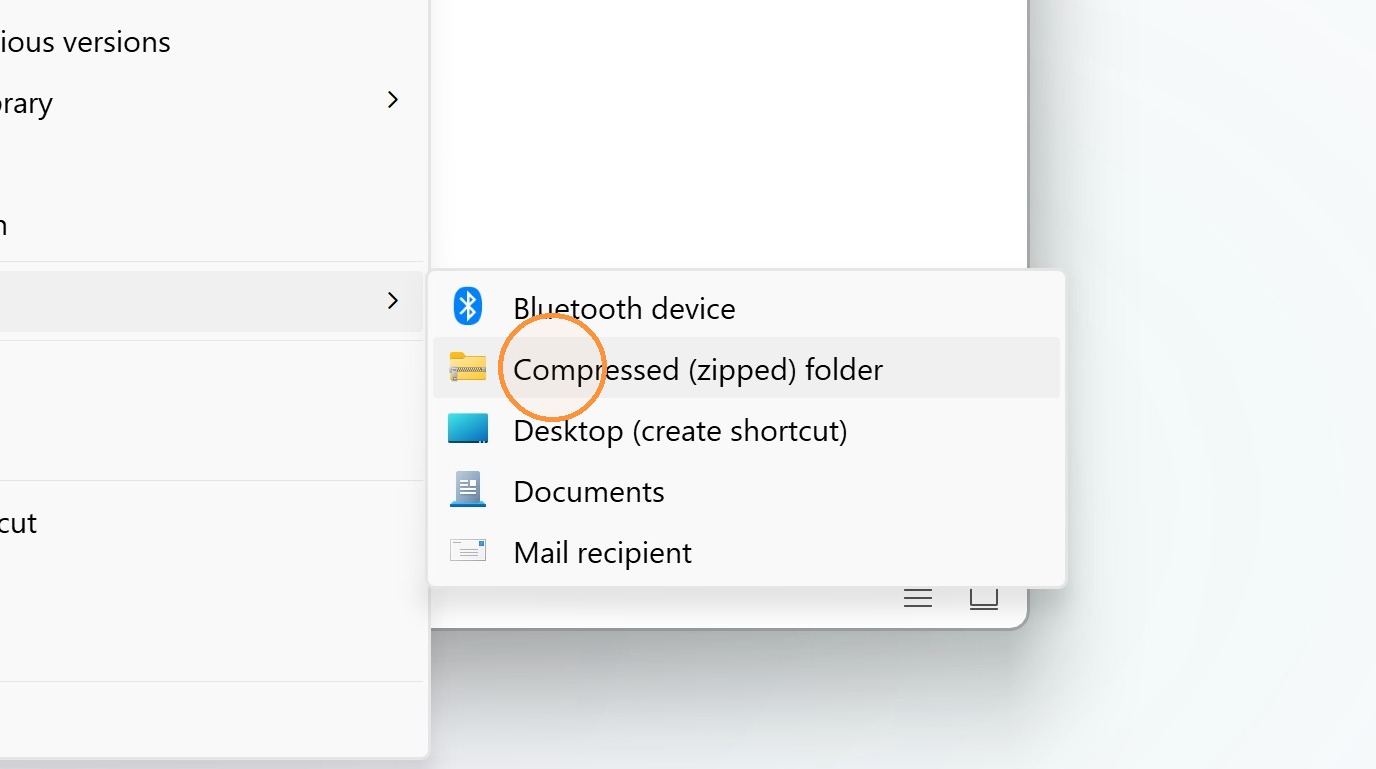
5. Name and save the folder. It will default to using the same name as your folder, which is fine as it will create a different file type, so will not overwrite your main version.
Set Up the Transfer
6. Go to https://wetransfer.com/
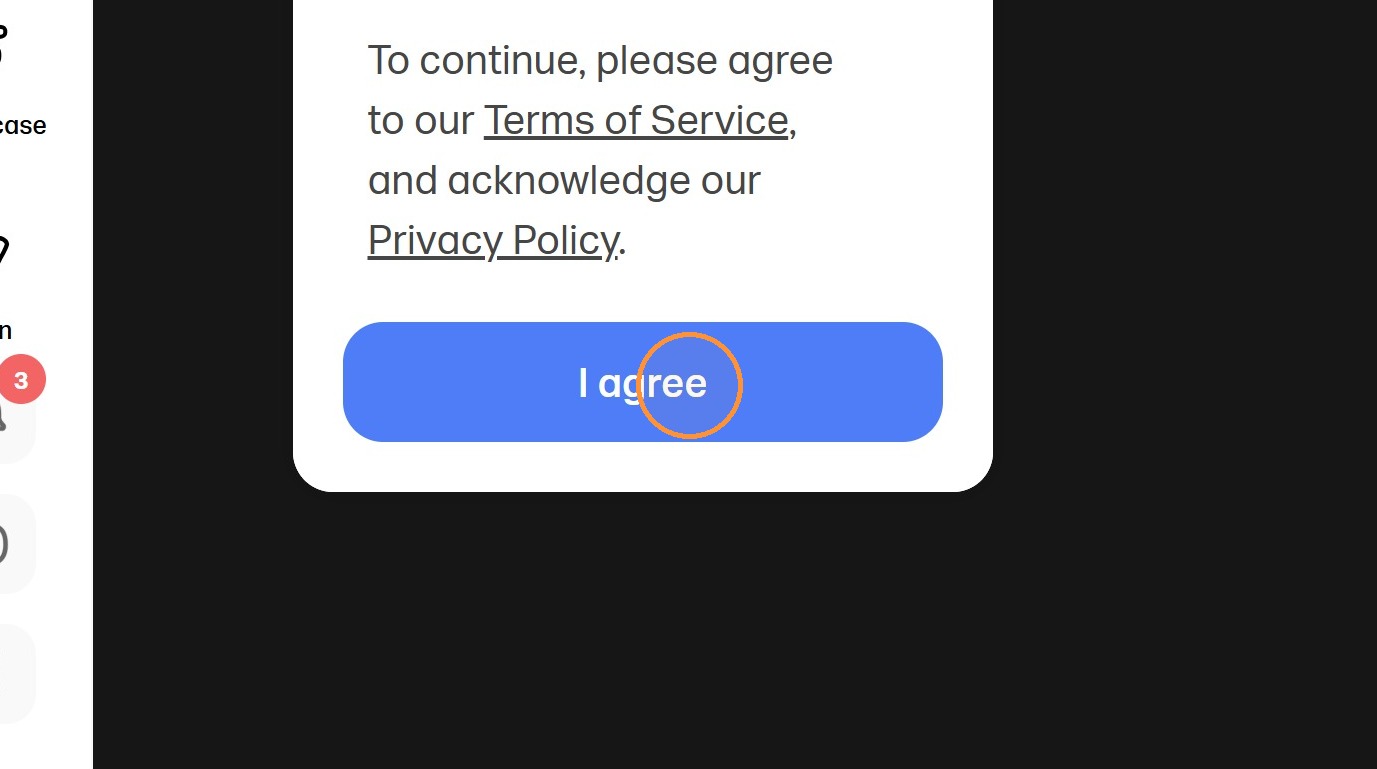
7. Click I agree on the WeTransfer terms prompt
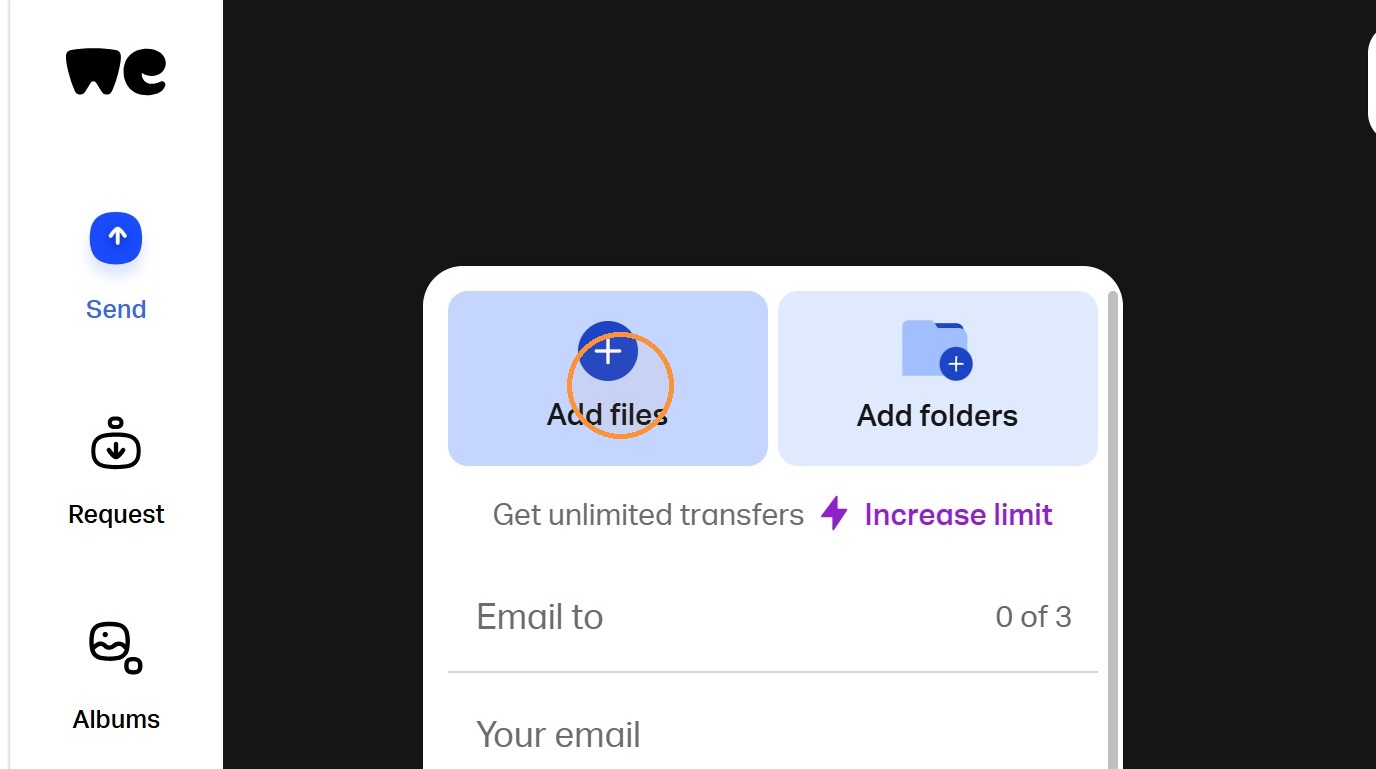
8. Click Add files on the WeTransfer form
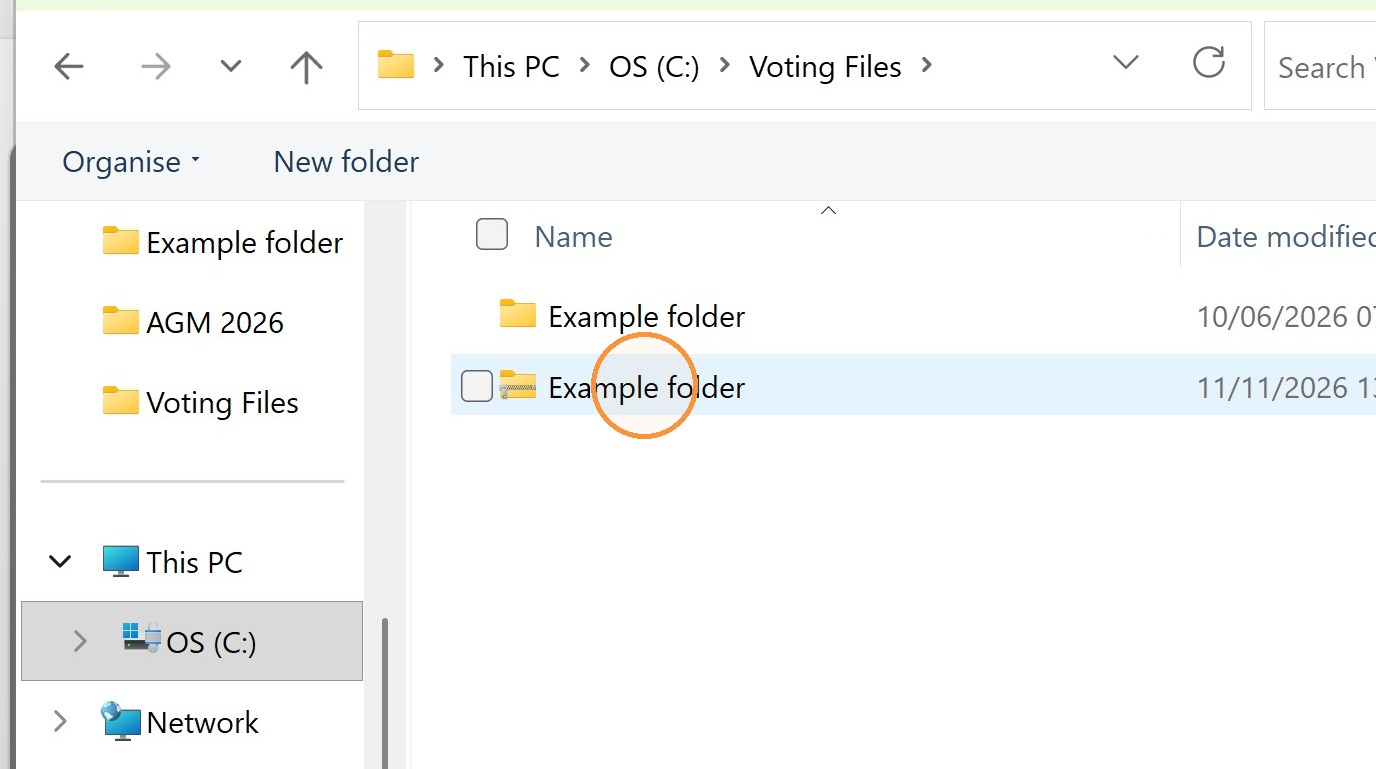
9. Browse to the zip file of your course. On zips the yellow folder icon shows a metal zip running across the folder. Double click the zip file to upload it to wetransfer.com
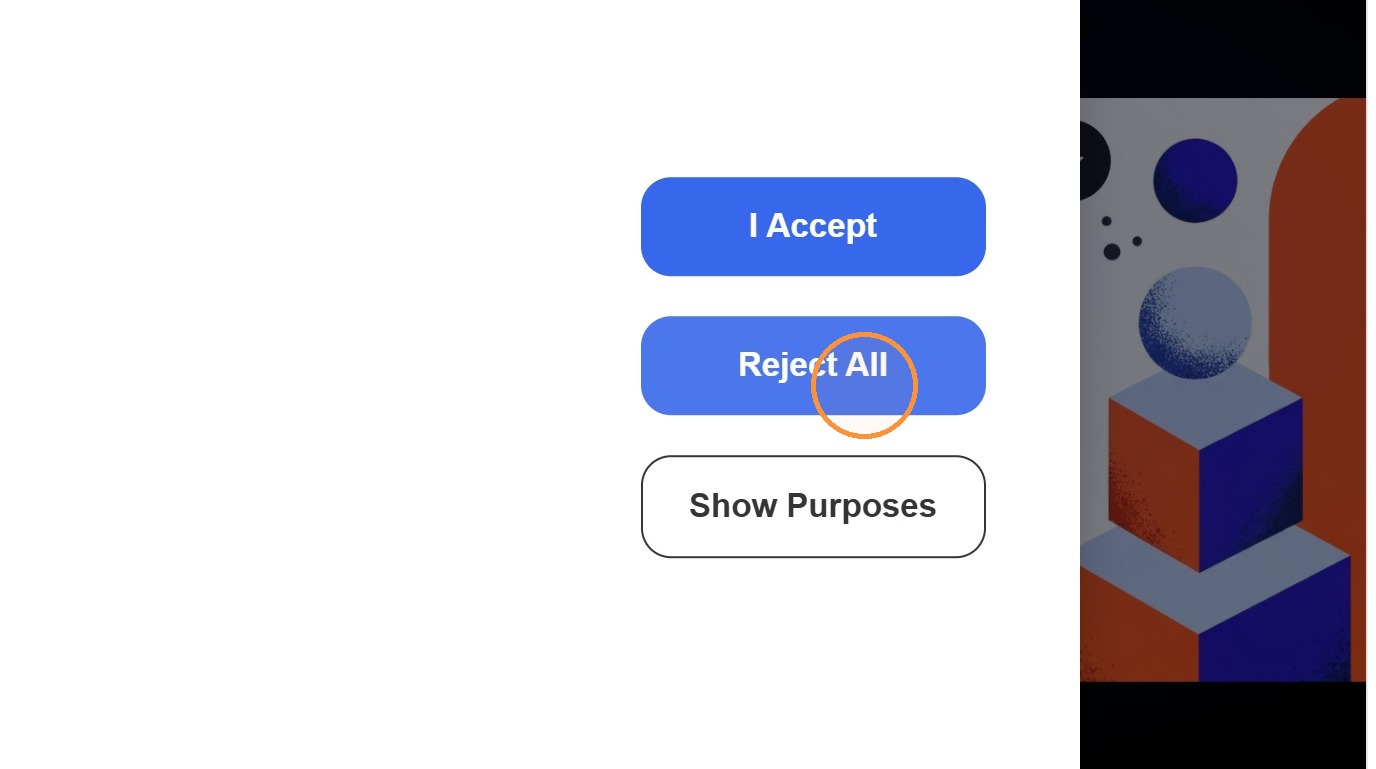
10. Click Reject All on the WeTransfer privacy prompt
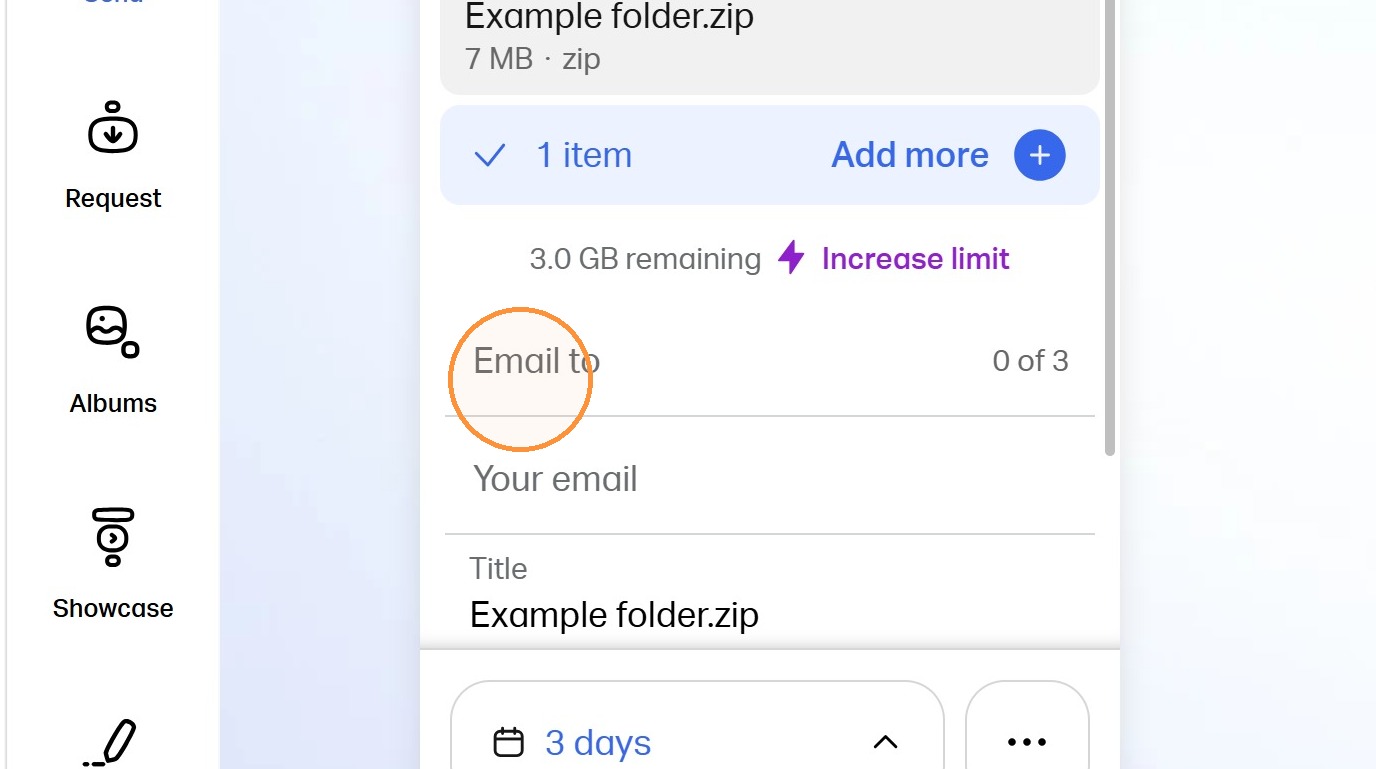
11. Click "Email to"
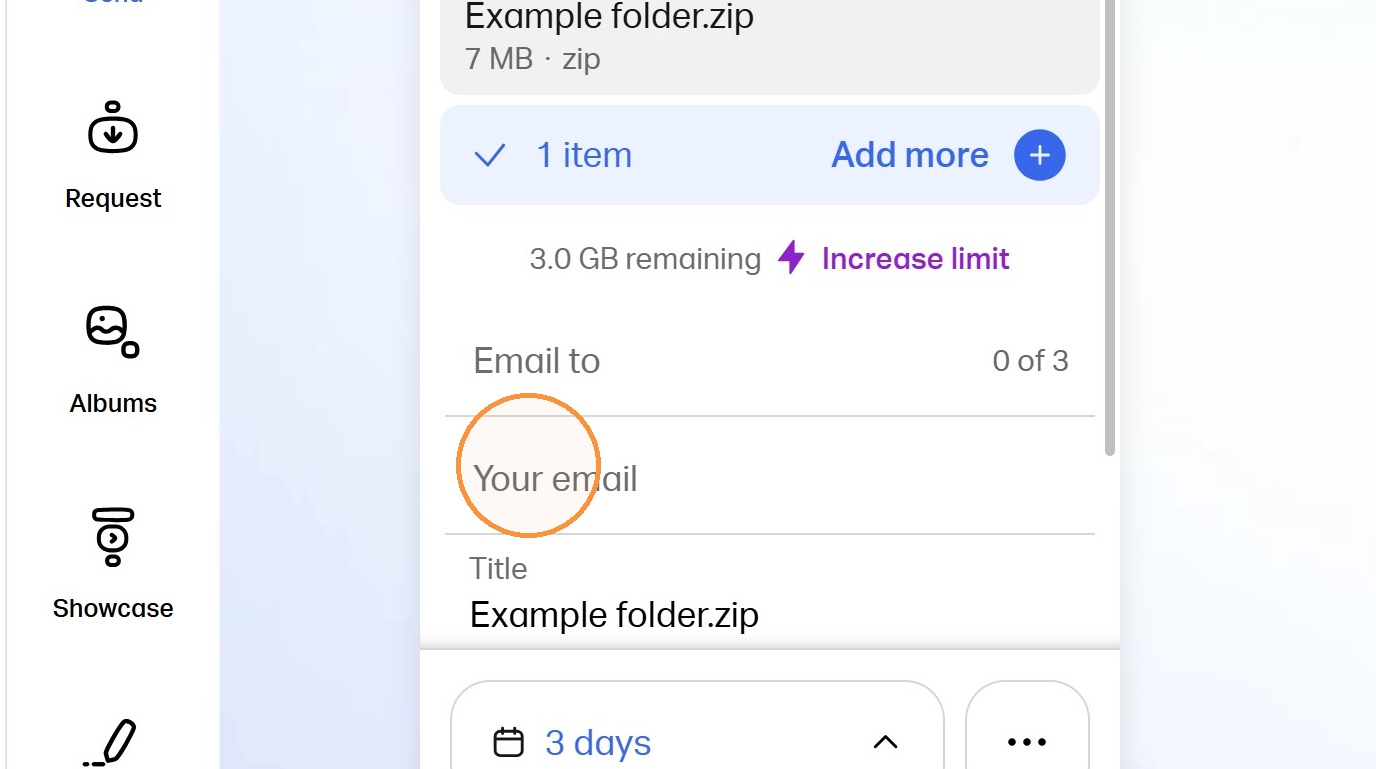
12. Click "Your email" and type in your own email address. Ensure that you enter this correctly, as wetransfer will send your confirmation code to that email address and you cannot send the transfer without submitting the code.
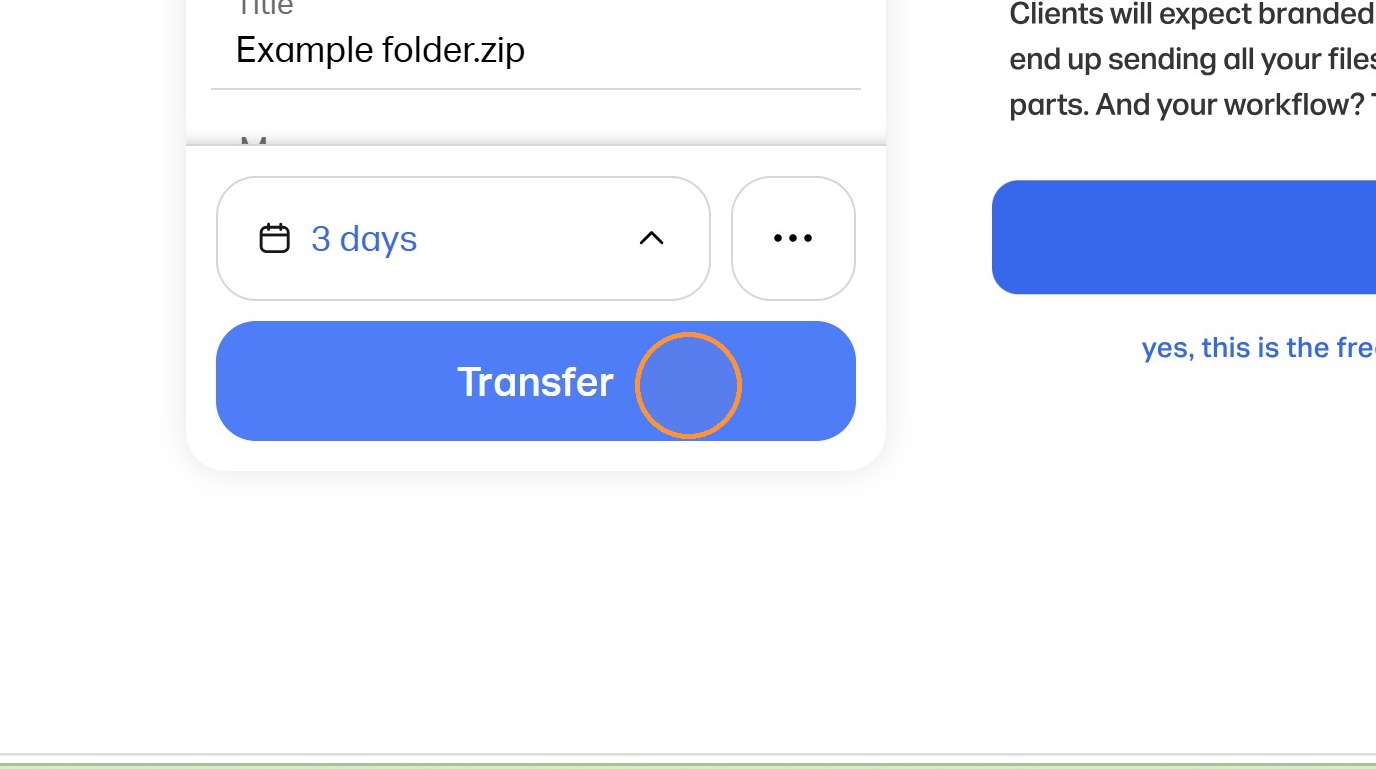
13. Click "Transfer"
Verify the Email
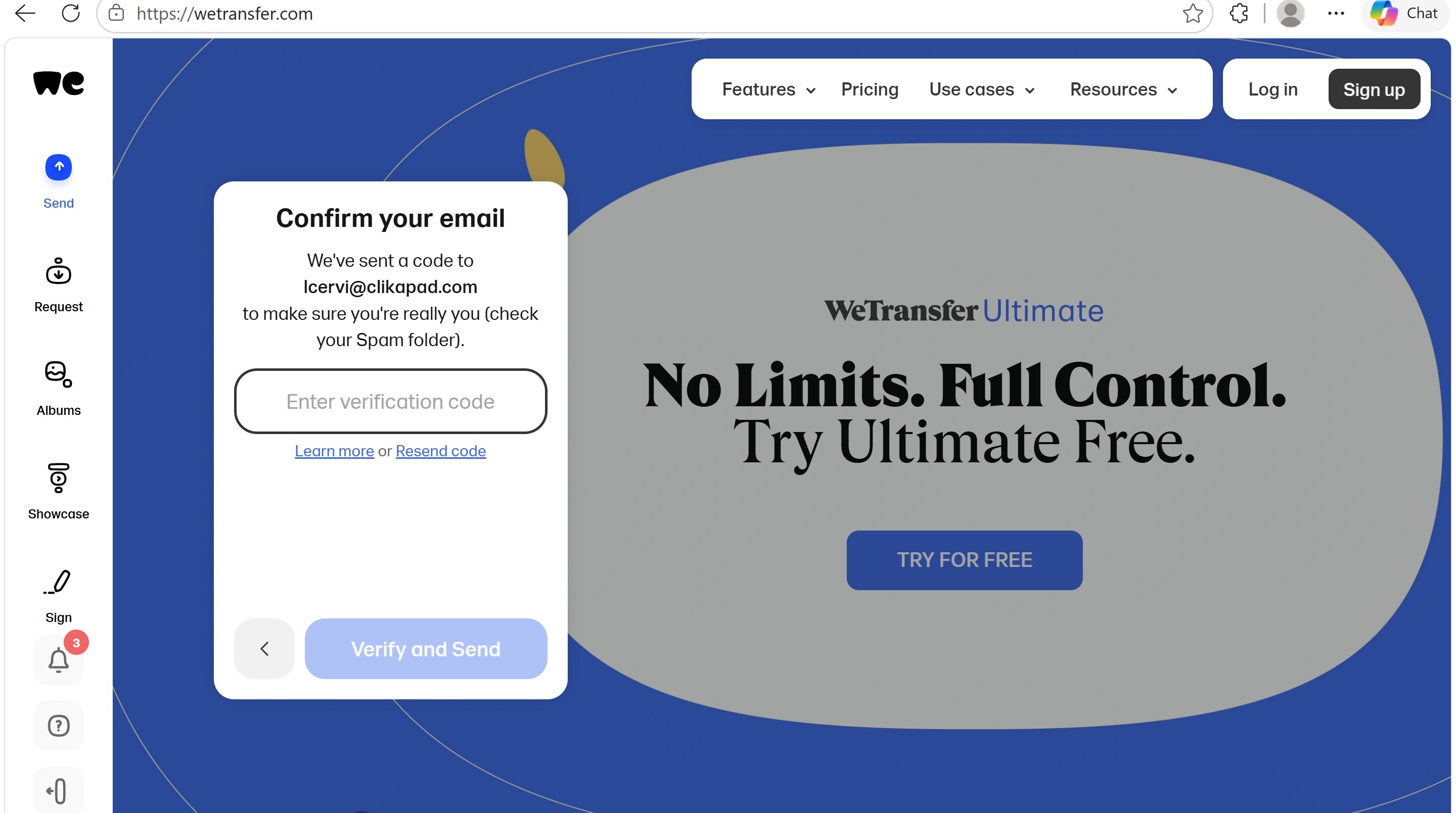
14. You will see a confirmation like this. You need to get the code from your inbox and paste it in. If you see other options like signing up for a free trial or opening an account, ignore them.
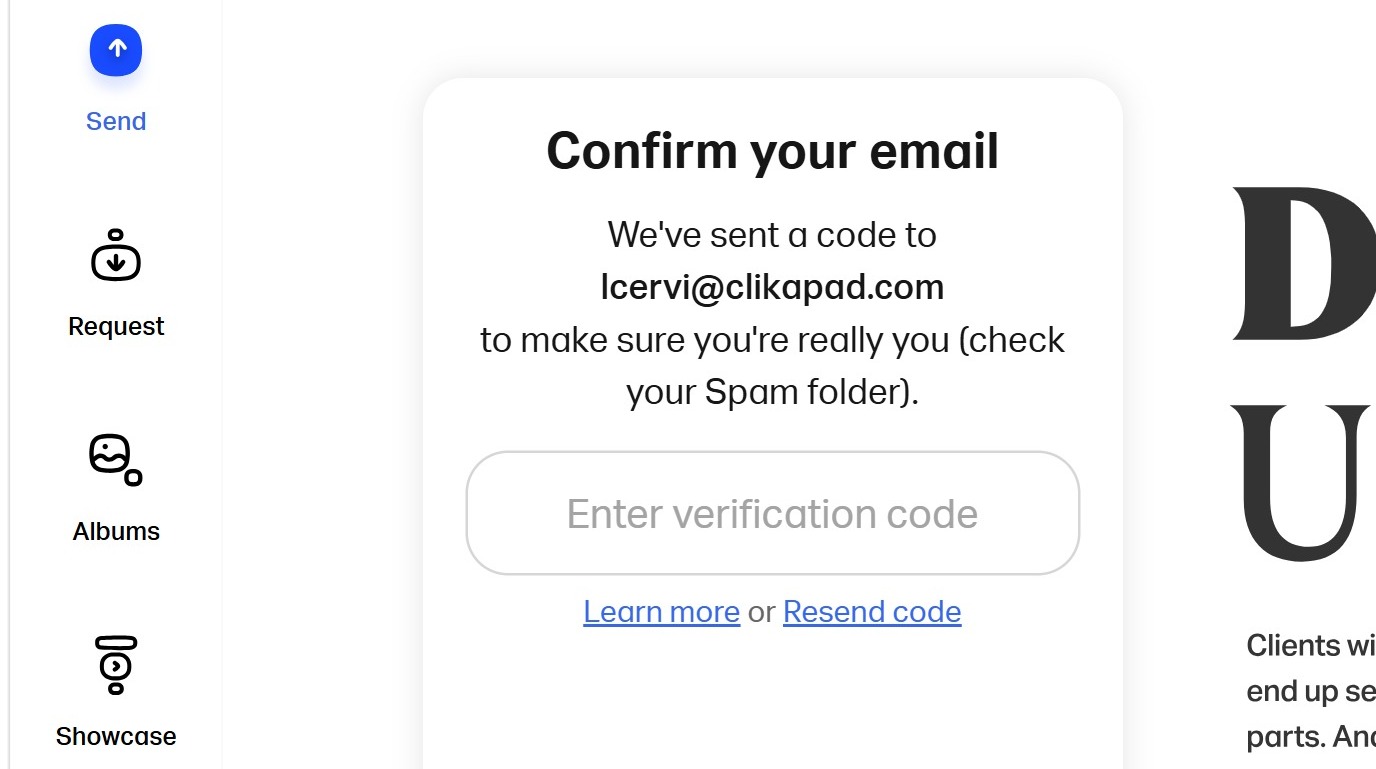
15. Scroll down in the WeTransfer email in your inbox to view the verification code. Select and copy the verification code.
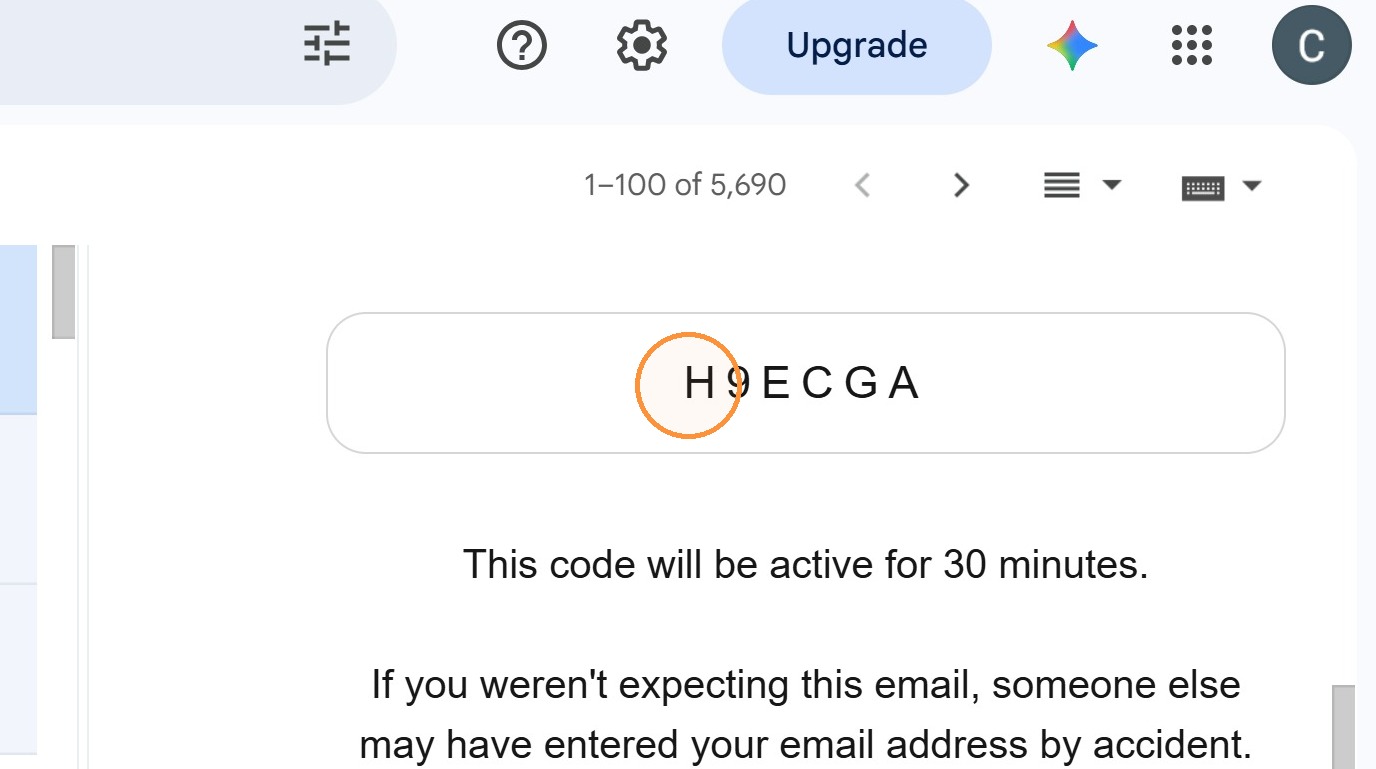
16. Enter the verification code in the confirmation field on the wetransfer page where you uploaded the file. Click verify and send.