
How to Download and Extract WJA courses
For the courses to run correctly, including the videos and voting functioning, you will need to ensure that you extract the files from the zip and save them to the specified path (C:\Voting Files)
Download Course folders
- Click the link that is supplied to you.
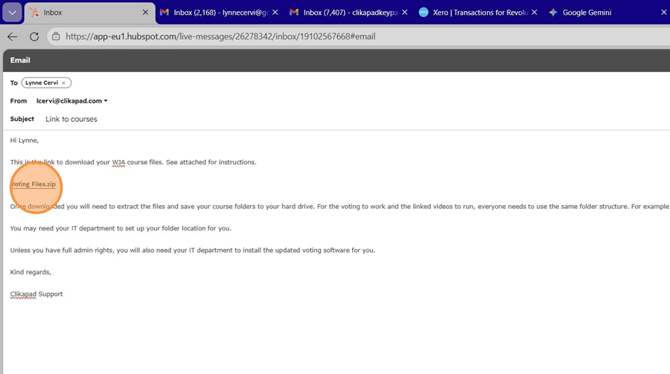
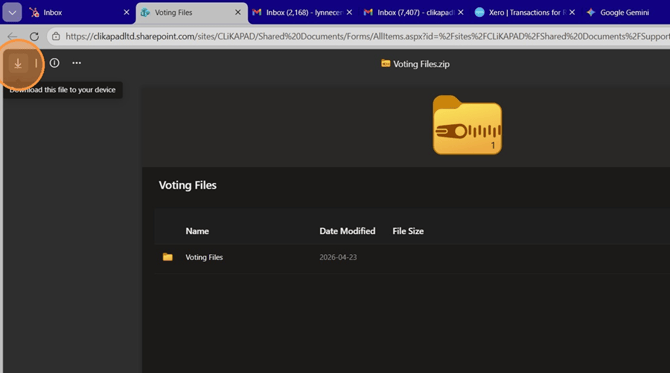
- Click the Download icon to save the zip file to your device.
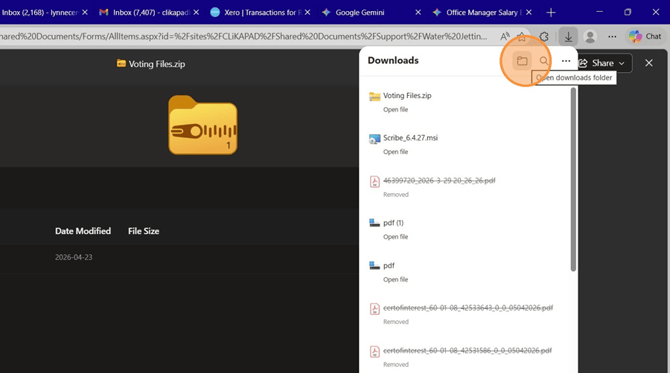
- Click the folder icon to open your Downloads folder in File Explorer.
Extract and Organize Files
- Select the file and click "Extract all" in the File Explorer ribbon. If you don’t have an Extract all option in the bar, right click on the file and you will find Extract all in the list of options.
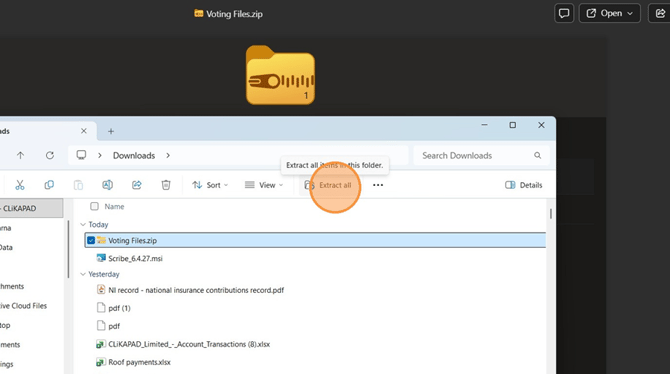
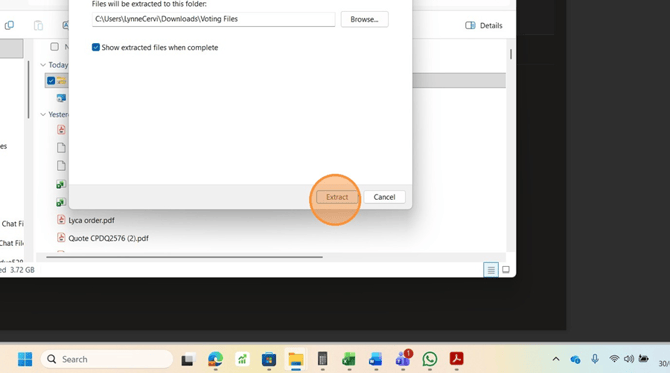
- Click "Extract" to unzip the files to the default location.
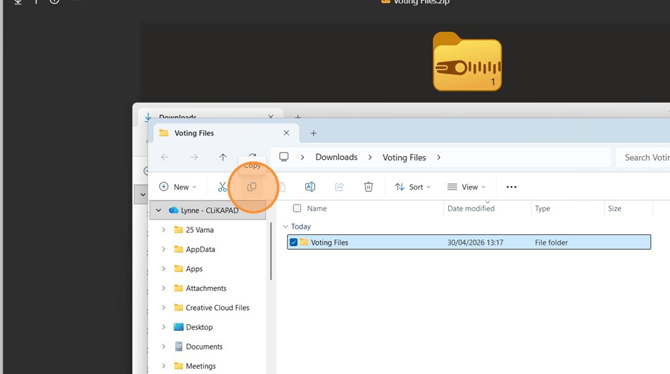
- Select the extracted "Voting Files" folder and click the Copy icon.
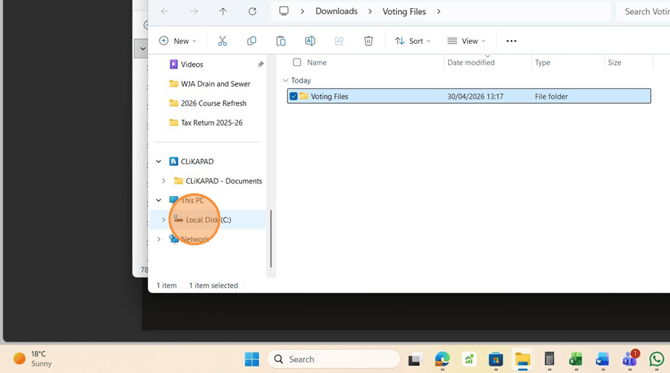
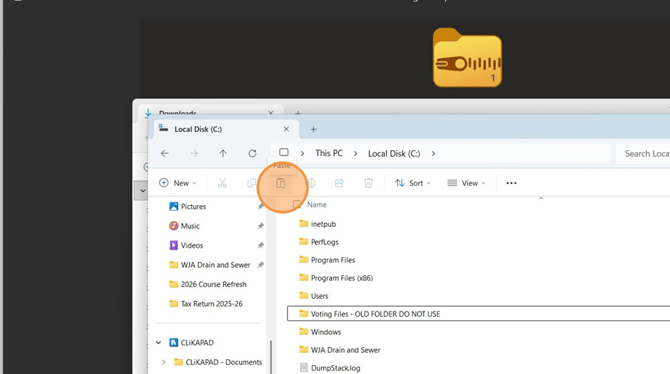
- Navigate to "Local Disk (C:)" in the File Explorer sidebar.
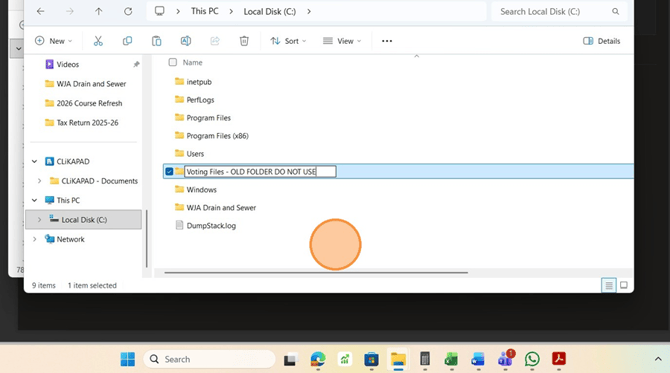
- Rename the existing "Voting Files" folder to "Voting Files - OLD FOLDER DO NOT USE" to prevent confusion. Skip this step if you don’t already have a Voting Files folder!
PLEASE DON'T DELETE YOUR EXISTING COURSES UNTIL YOU HAVE FULLY TESTED ALL OF THE NEW ONES!
- Rename the existing "Voting Files" folder to "Voting Files - OLD FOLDER DO NOT USE" to prevent confusion. Skip this step if you don’t already have a Voting Files folder!
6. Click the Paste icon to move the new folder into the C: drive.
Check the files
- You should have one folder for every course that you deliver. Each course folder will have the course presentation, practical assessment form, paper tests, linked videos, ppvote Participant list and the custom report template. Check that they are all there and that you have every course that you need.
- Then check each course presentation has been updated to show your logo, photo and name on the trainer slide near the start of the presentation.
- Scroll down to find the QR slide and ensure that the email address and password are updated to the ones that have been supplied to you. The password will normally be PassWord123*. Double check that the slide has a capital W and update it if not.
Once you are confident that you have everything you need, you can delete the copy of the folders from your downloads folder. However, you may want to keep a copy of the zip file safe for later use. We recommend you store that on an external HDD, on your work server or in a One Drive location where it will be backed up. We recommend that you keep an archive copy of your old courses until you are fully confident with the new ones.
Test the new courses
The key things to test from a technical perspective are that the votes run and that all of the videos play.
If the videos aren't all playing when you are full screen as though you are running the course, you can force the links to refresh.
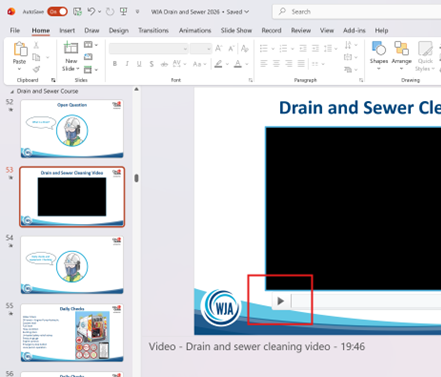
In the normal view, where you can see all the slides down the left side and the current slide big as the main part of the window, click on the video and you should see a play button appear at the bottom left of it. Click that to play it. Once you have played all the videos once in that view, they should also all play when you are presenting. It's worth you going through all your courses and doing this for all the videos rather than waiting to see which do and don't work.
Please log a support ticket or email wja@clikapad.com if you have any issues to report.