
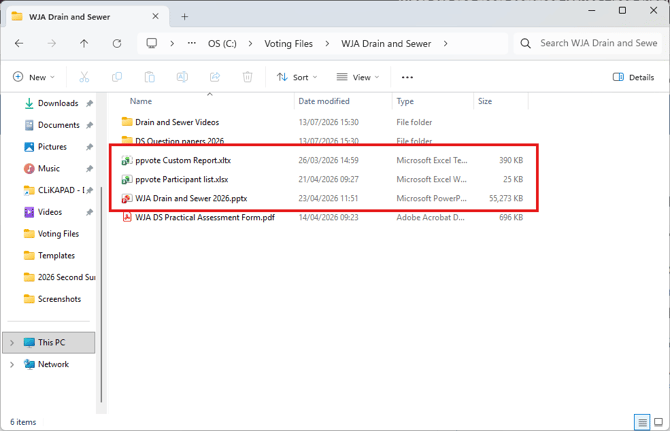
For your reports to export correctly you must have all three files saved to the same folder: the course PowerPoint, the ppvote Participant list and the ppvote Custom Report (which is the template which determines the way the report looks).
We also recommend that you ensure that Excel is closed before you run the export.
ISSUE 1. The report does not include the trainee data, such as trainee names and WJA numbers.
The information about the trainees must be saved in the ppvote Participant list, which must be saved in the same location as the PowerPoint course file. It must not be renamed and it must not be in a sub folder. Ensure the file is in the right place and has the right name, add the trainee information to it if you have not already done so, and then run the export again.
ISSUE 2. The report does not have the individual trainee sheets but does have the trainee names etc on the Results by keypad sheet. The report also does not show the trainer logo and WJA logo.
The wrong export type has been selected. You need to click on Custom Export not Export to Excel. The branding elements and the instruction to create a sheet per trainee, are both in the Custom Export details stored in the ppvote Custom Report template.
ISSUE 3. The report does not have the individual trainee sheets AND does NOT have the trainee names etc on the Results by keypad sheet. The report also does not show the trainer logo and WJA logo.
The participant list is not being read (see issue 1 and correct) and the wrong export type has been run (see issue 3). For everything to run correctly you must have all three required files save in the same folder. See screenshot above for how each course folder should look.
ISSUE 4.The data will not export at all with error 1004.
1004 is a generic Excel error rather than one that is generated by the voting software. It's important to read the text in the description to get clues. The most common is the unusual characters one shown here.
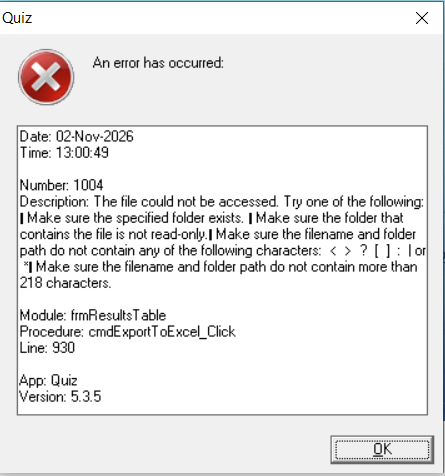
Look out for any unusual characters in your file name. Error 1004 lists most of those that cause an issue. One thing to pay attention to is whether you are trying to export from an auto recovered version of your presentation as that uses square brackets, which are one of the disallowed characters, look out for [Recovered] at the end of your filename and delete the square brackets.
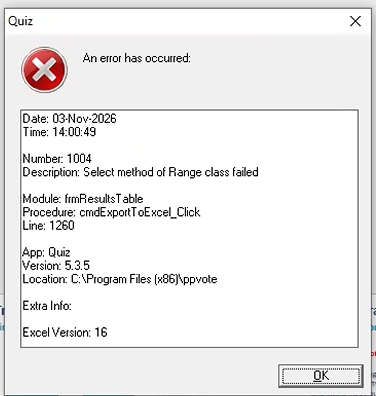
The example below is a less helpful message. In this case the resolution was to reboot the computer and then run the export again ensuring that Excel was closed before exporting. Sometimes Excel can get confused by trying to produce a new file while it is in an active state.
Issue 5. The data won't export but there is no error message.
No error message but it won't export at all? Check that you have the course folder saved in the correct location. Your folder should not be in a One Drive synced location, which normally includes Documents, Downloads, Desktop. All course folders need to be stored locally on the laptop's harddrive. The recommended standard path is "C:\Voting Files".
Move the whole course folder to the correct location if necessary.
Reboot your computer. Do not open Excel. Try exporting again